
Convert HEIC to JPG on your iPhone
Batch-convert iPhone photos to JPG, PNG, WebP or PDF, right on the device.
Install on your iPhoneScan with your phone camera.
Screenshots




About Photo Converter HEIC : CODEC
Your iPhone saves photos as HEIC. The upload form wants JPG. That mismatch is the whole reason this app exists, and converting HEIC to JPG on iPhone should take about ten seconds — not a trip to a desktop computer or an upload to a website you have never heard of.
CODEC converts a photo into the exact format and size you need, on the device you are already holding.
The formats, and why they matter
HEIC stores the same image in roughly half the space of a JPG, which is why Apple switched to it. The problem is everything else: government upload forms, older print shops, marketplace listings, university submission portals and a surprising amount of business software still only understand JPG or PNG.
CODEC writes out JPG, PNG, WebP and PDF, and reads rather more than that — it opens Camera RAW files too, so a backlog of CR2, NEF, ARW or DNG files from a Canon, Nikon or Sony body becomes a folder of ordinary JPGs.
Converting a batch, not a photo
One photo is easy. Four hundred is the actual problem.
Select the whole set and convert in a single run. Rename the batch with a
pattern, so IMG_4021 becomes something you can find again. Then save that
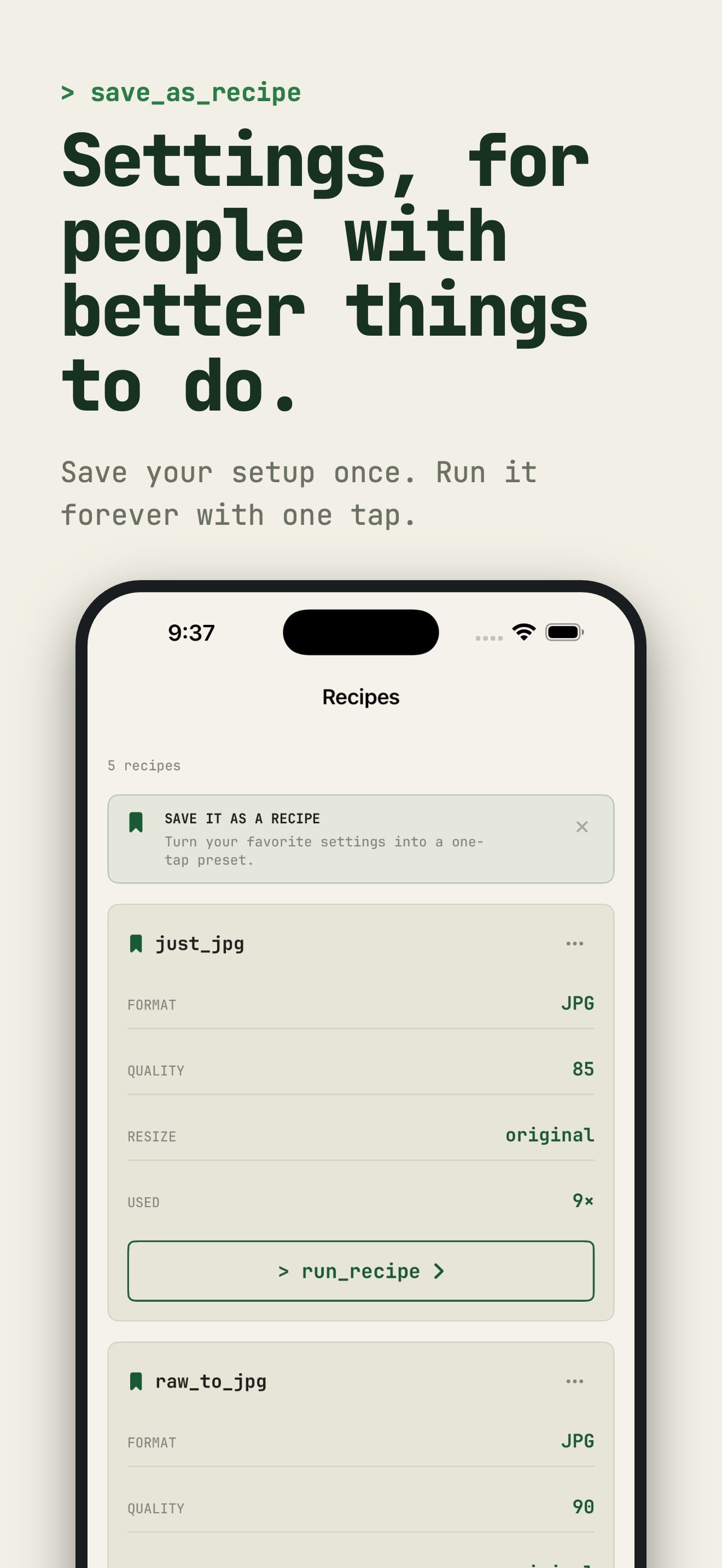
whole arrangement — format, size target, naming — as a recipe, and next month's
batch takes one tap instead of a fresh round of fiddling.
When the file has to be under a specific size
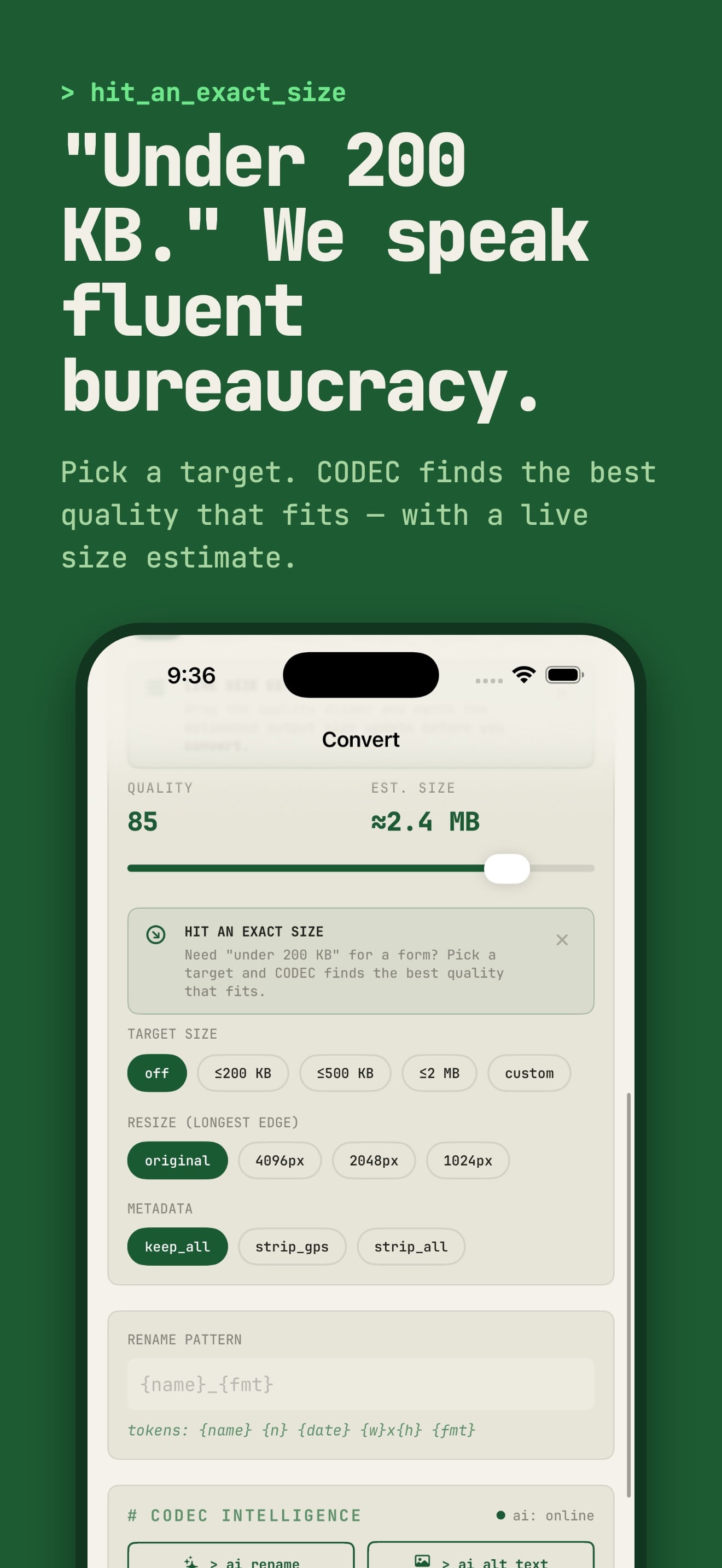
Plenty of forms refuse anything over 1 MB or 2 MB, and offer no help getting there. Guessing at a quality slider and re-exporting until something fits is a miserable way to spend a morning.
Give CODEC a target size instead. It adjusts the compression until the output lands under the limit. You can also resize by pixel dimensions or by percentage when the requirement is about dimensions rather than bytes.
What happens to your photos
Conversion runs on the device. No servers, no uploads, no account to create, and nothing to sign in to. CODEC also has permission only to add to your photo library, never to read it.
Two optional AI tools are the exception, and worth knowing about: AI renaming and AI alt text send a compressed copy of the image for processing, and store nothing. If you would rather nothing left the device at all, simply do not use those two features — everything else works exactly the same.
There is also a metadata step worth remembering. A photo straight from a phone usually carries the GPS coordinates of where it was taken. CODEC can strip EXIF and location data on the way out, which matters more than most people expect when selling something online or sending a picture of a house.
Who ends up using it
Photographers clearing a RAW backlog. Sellers preparing listings that must be JPG. Students compressing scans to fit a submission limit. And a great many people who simply discovered, at an inconvenient moment, that their phone says HEIC when a website wants JPG.
What it does
Batch conversion
Convert hundreds of photos in a single run, rename the whole batch with a pattern, and save the setup as a recipe you can rerun in one tap.
Hit an exact file size
Set a target — under 1 MB, say — and CODEC compresses until it gets there. Or resize by pixels or by percentage.
Camera RAW support
Opens CR2 from Canon, NEF from Nikon, ARW from Sony, and DNG, and writes them out as JPG, PNG, WebP or PDF.
Photos into one PDF
Combine a batch of images into a single multi-page PDF — useful for scans, receipts and paperwork.
Strip metadata before sharing
Remove EXIF data and GPS location from a photo, so an image you send does not carry the address it was taken at.
How to use it
- 1
Open CODEC and tap Import, then select the photos you want to convert.
- 2
Choose the output format: JPG, PNG, WebP or PDF.
- 3
If the file has to fit a limit, set a target size or adjust the quality.
- 4
Tap Convert. The finished files are saved to your Photos library.
Frequently asked questions
Why do my iPhone photos say HEIC?
Since iOS 11, iPhones save photos as HEIC because it stores the same picture in roughly half the space of a JPG. The trade-off is that plenty of websites, older software and printing services still only accept JPG or PNG.
Does converting reduce photo quality?
Converting to PNG is lossless — nothing is thrown away. JPG and WebP are lossy formats, so some data is discarded, but CODEC lets you set the quality level and, at high settings, the difference is not visible. Your original photo is never modified.
Do my photos get uploaded anywhere?
Conversion runs entirely on your iPhone or iPad — no servers, no uploads. The two optional AI tools, renaming and alt text, are the exception: they send a compressed copy for processing and store nothing. Everything else stays on the device.
Can it convert RAW files from my camera?
Yes. CODEC reads Canon CR2, Nikon NEF, Sony ARW and DNG files and converts them to JPG, PNG, WebP or PDF, including in batches.
How do I get a photo under a specific file size?
Set a target size before converting. CODEC adjusts the compression until the output fits under the limit you gave it, which is what most upload forms and job applications need.
Download on the App Store
Batch-convert iPhone photos to JPG, PNG, WebP or PDF, right on the device.

Related apps

AI Thumbnail Maker HOOK PRO
Turn your video title into a scroll-stopping thumbnail in seconds.

Photo Compressor: Kompressor
Kompressor makes it easy to compress photos and videos on your iPhone and iPad.

Travel Map Tracker : Terra Mea
Terra Mea turns the photos already on your iPhone and iPad into a beautiful, private travel map.
Equipment Maintenance: IRONLOG
IRONLOG is the maintenance log for field equipment.